Simagic P1000 Haptics on Throttle & Brake
The “Only One Pedel Works” Fix (SimHub + iRacing)
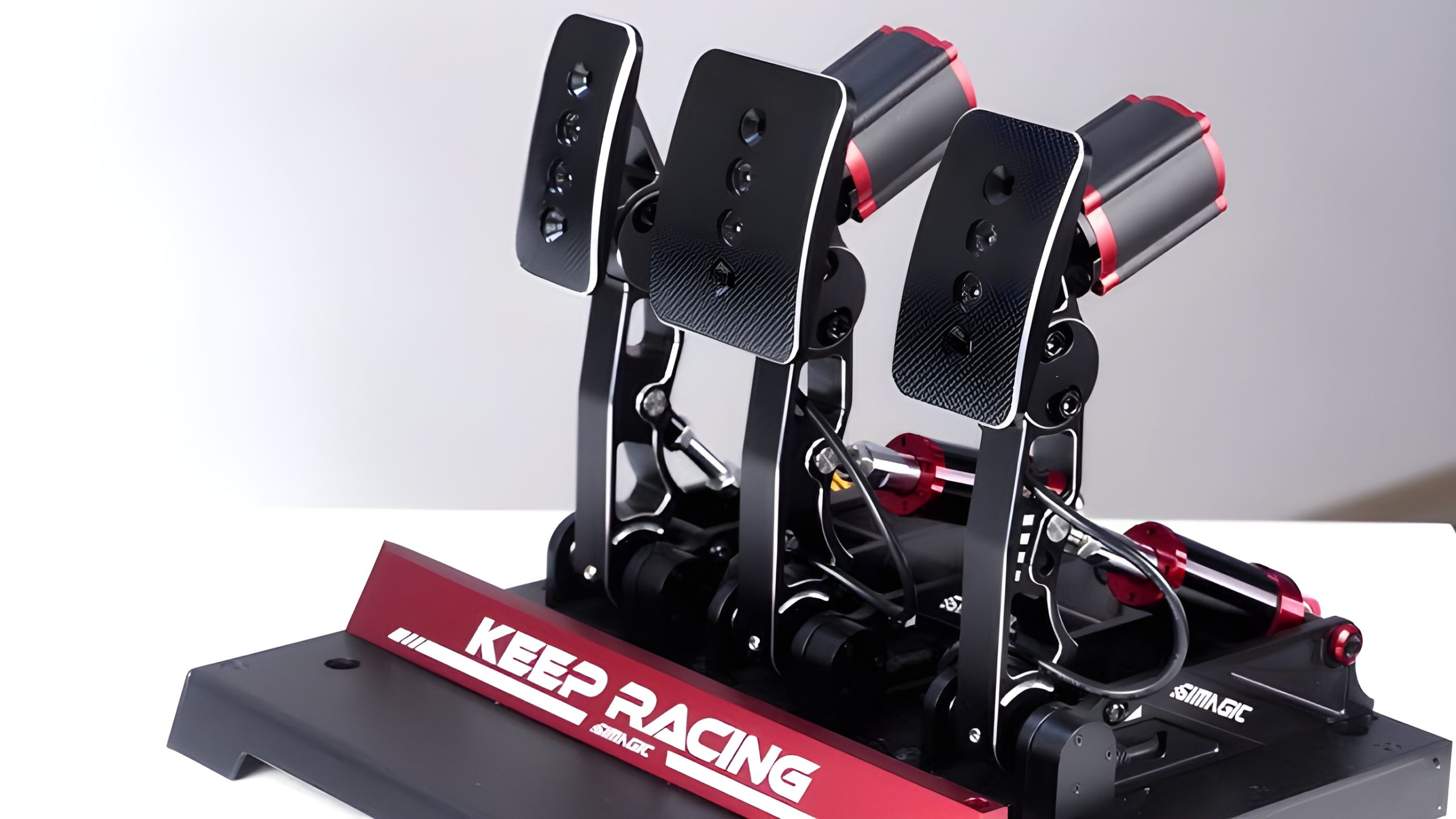
I installed Simagic P-HPR haptics on my P1000 throttle and brake and thought it would be plug-and-play. Hardware was fine, but I spent hours stuck because I could only get one haptic working at a time. This post is the simple setup path I wish I had.
What I’m running
Pedals
Simagic P1000
Haptics
P-HPR on throttle + brake
Software
SimHub (primary), SimPro Manager (setup/firmware only)
Sim
iRacing

The issue I hit
My exact symptom was consistent: everything detected, but in practice only one haptic would work at a time (sometimes brake, sometimes throttle). I assumed wiring was wrong. It wasn’t.
Key Initial Checks
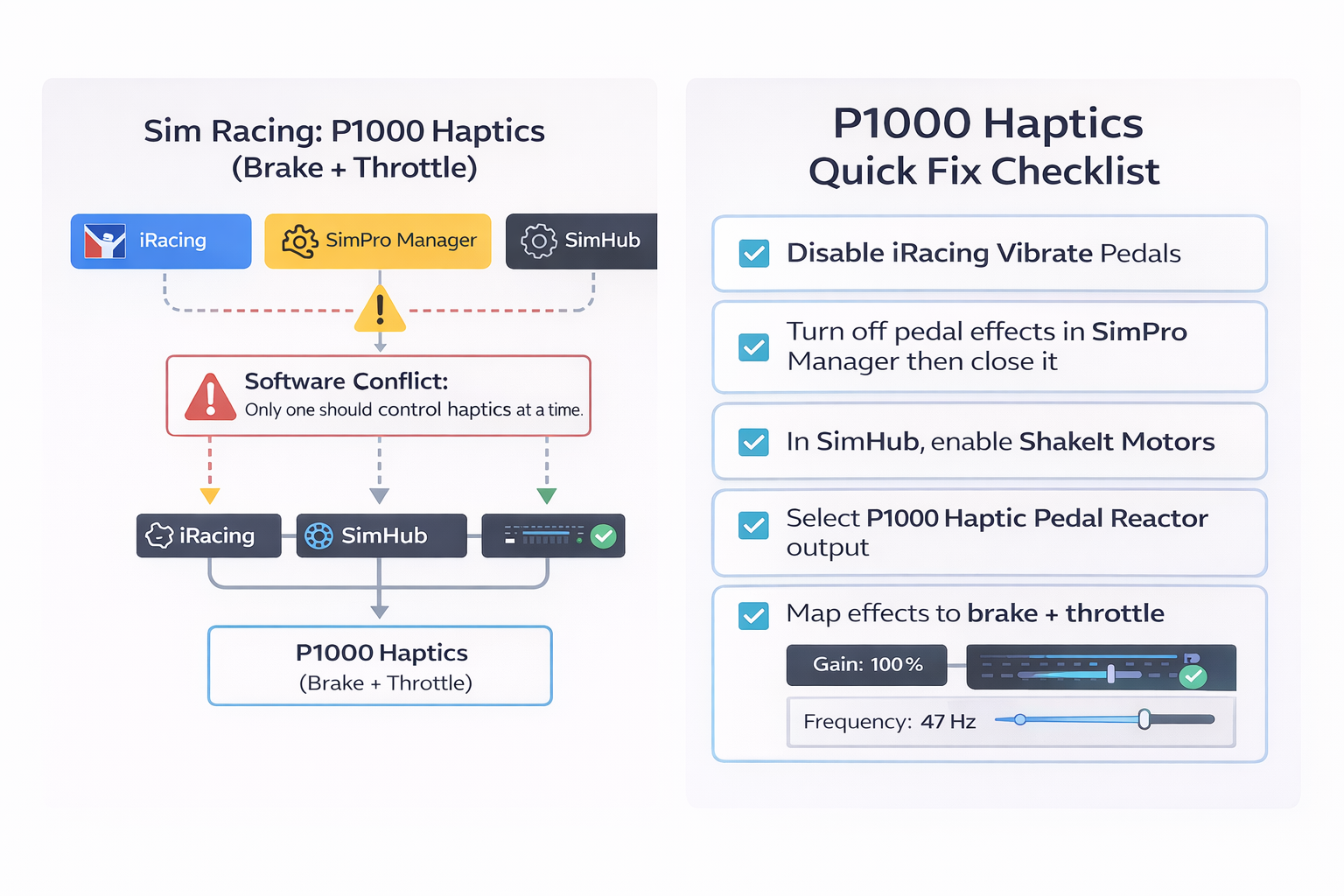
Kill conflicts first
I had to fully stop all other apps from driving vibration other then Simhub. If two tools try to control the same motors, results are unpredictable.
iRacing setting
Turn off iRacing vibration so SimHub is the only output source. Check Simpro's also got all feedback toggles for pedals off.
SimPro Manager
Even if you plan to use SimHub, I still had issues unless I:
- turned all pedal feedback OFF in SimPro
- then closed SimPro completely

Set Up Simhub
Guide For Setup Below

iRacing Settings
Peddle Vibration : Off
Shut Simpro Down
Configure Simhub Only
SimHub setup basics
Two things matter:
-
you must set the device up in SimHub properly (use test features to check this)
-
you must raise the relevant effect strength enough to trigger (too low = “it doesn’t work”)
Step - By - Step Guide In Depth
Step 1 — Hardware sanity check
Make sure you’ve got:
-
P-HPR haptic units mounted securely
-
The power supply connected properly
-
USB connection stable (ideally direct to PC in a USB 3.0 port, not a flaky hub)
Check connections
Power supply and USB 3.0
iRacing Settings
Peddle Vibration : Off
Step 2 — Stop the software fighting
Turn off iRacing vibration so SimHub is the only output source. (Check Simpro's also got all feedback toggles for pedals off. Further info below)
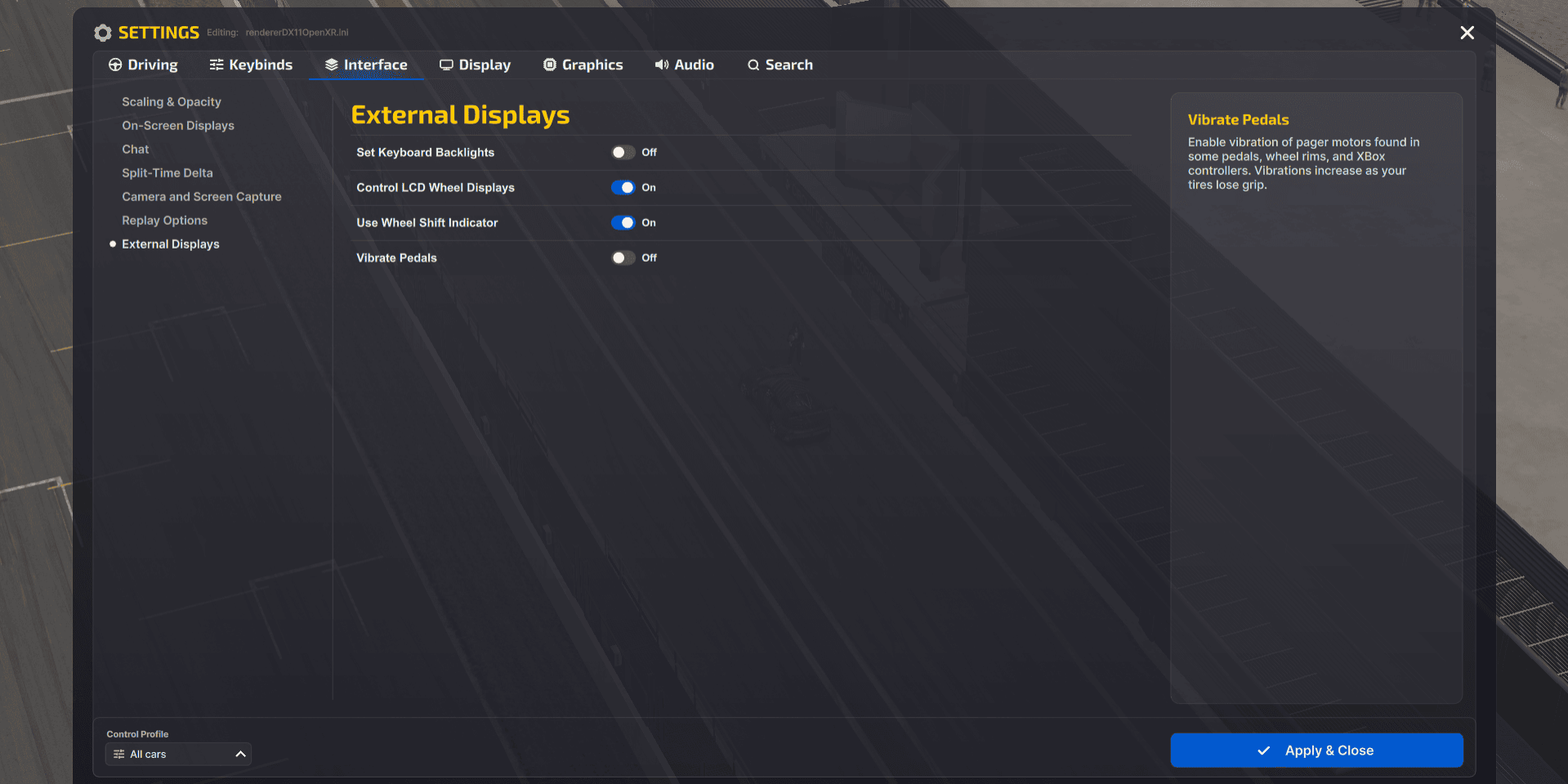
-
iRacing settings main screen
-
Driving → Interface tab
-
External Displays → “Vibrate Pedals” OFF
Step 3 — SimPro Manager: turn all pedal effects OFF!
Turn off iRacing vibration so SimHub is the only output source. Check Simpro's also got all feedback toggles for pedals off.
In SimPro Manager: turn pedal effects OFF, then close it
This was a big one for me.
Even if you close SimPro Manager, if you didn’t properly turn off pedal feedback/effects first, it can still cause confusion while you troubleshoot.
My rule now:
Turn off any pedal vibration/feedback inside SimPro Manager
Then fully close it
Then only use SimHub for testing and setting up pedel feedback.
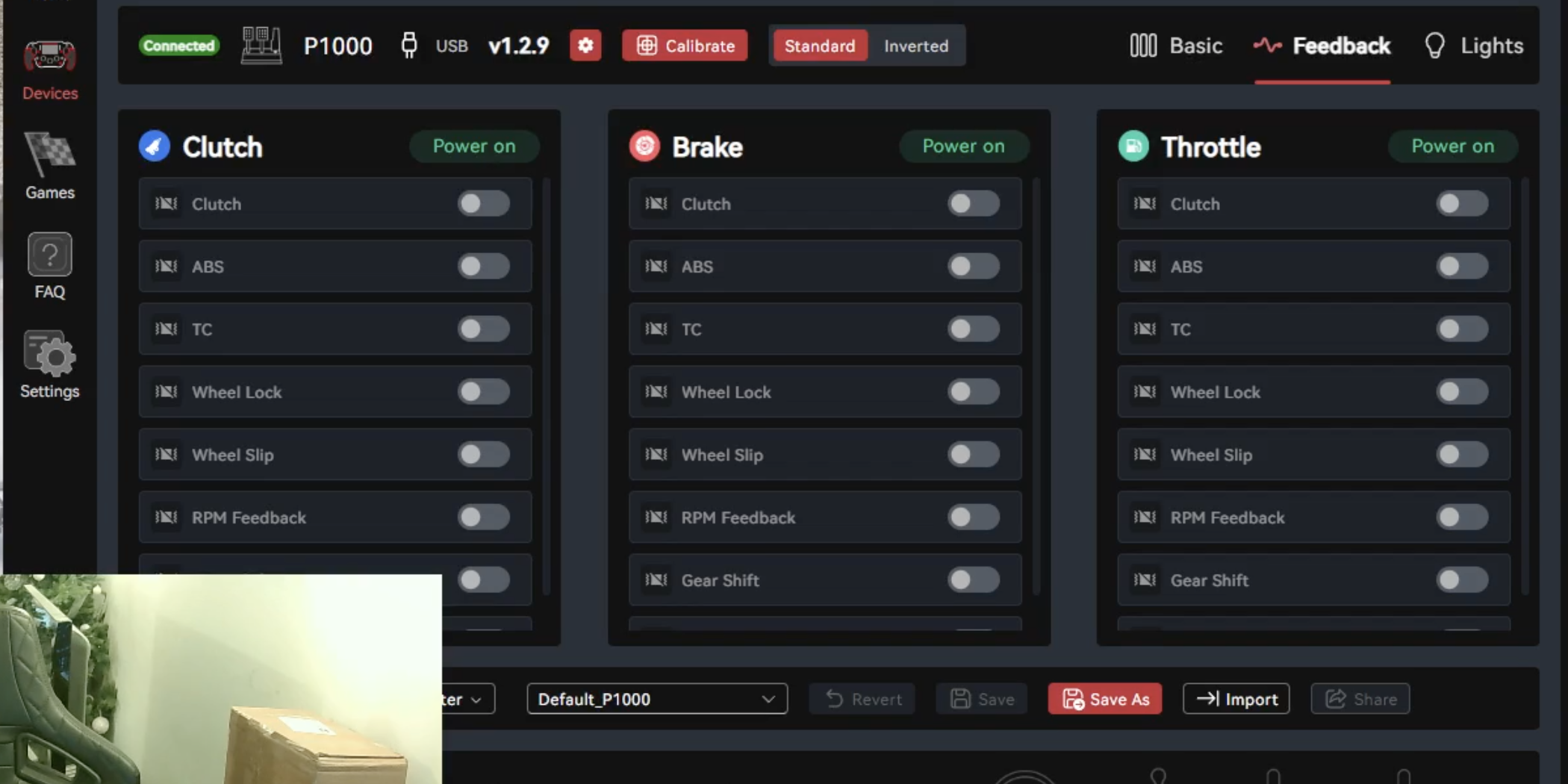
All feedback tabs in Sim Pro Manager need to be turned off and the software closed before setting up Simhub. Sim Pro manager toggles should be set to off as like above.
Step 4 — SimHub setup for P1000 haptics (what actually matters)
4A) Enable the right SimHub features
You need the pedal haptics running under:
-
ShakeIt Motors
-
Ensure the relevant feature/plugin is enabled
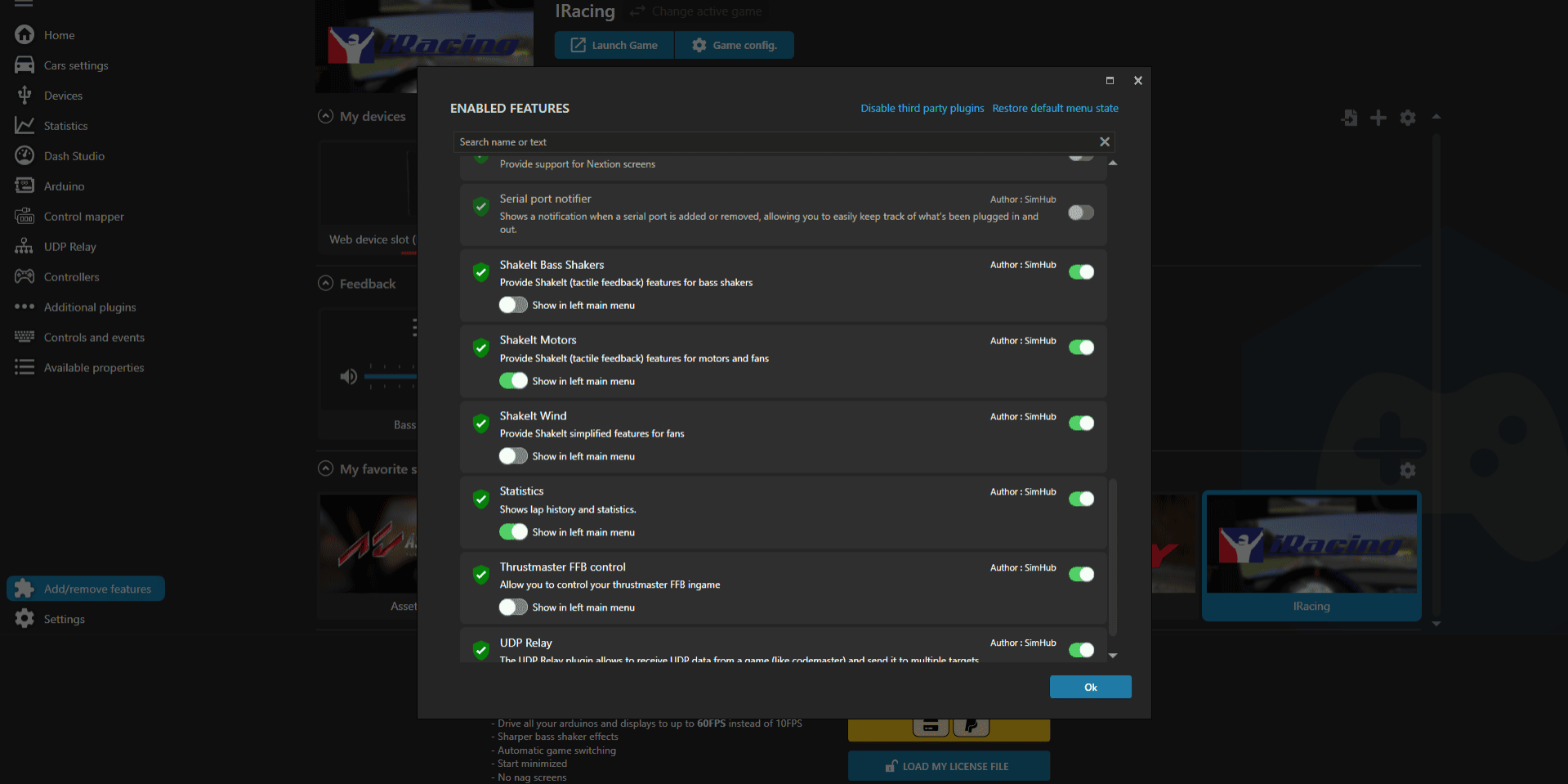
Select Add/ Remove features (Bottom left of Sim Hub Dashboard - Just above settings)
In the pop out screen shown above select enable shake it motors in the menu. Make sure to turn the on both toggles for shake it motors as seen above.
4B) Select iRacing as the active game
In SimHub:
-
Choose iRacing from the game list
-
You should see it active on the home screen (and typically “waiting for data” until iRacing is running)
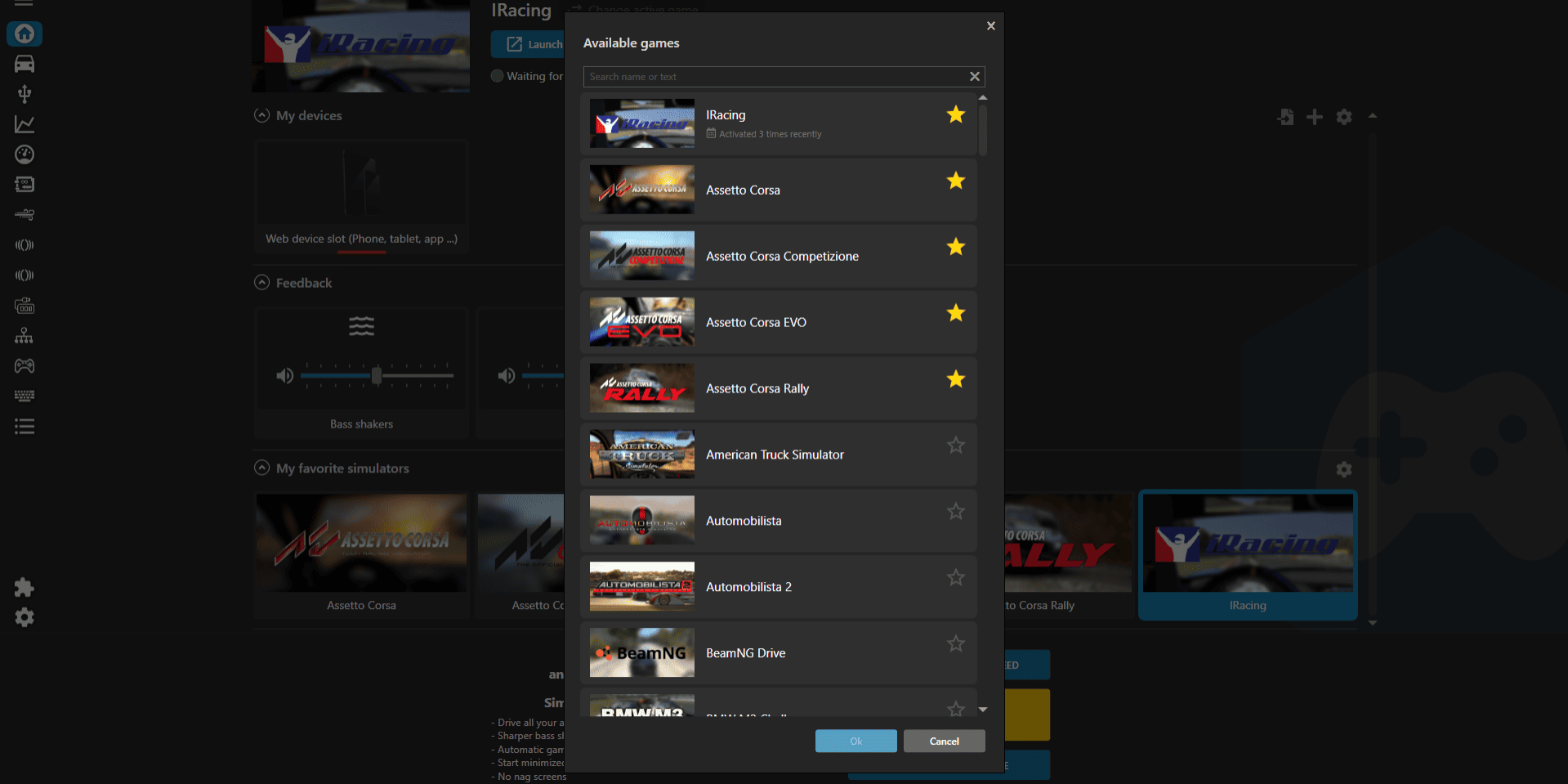
Choose iRacing from the game list
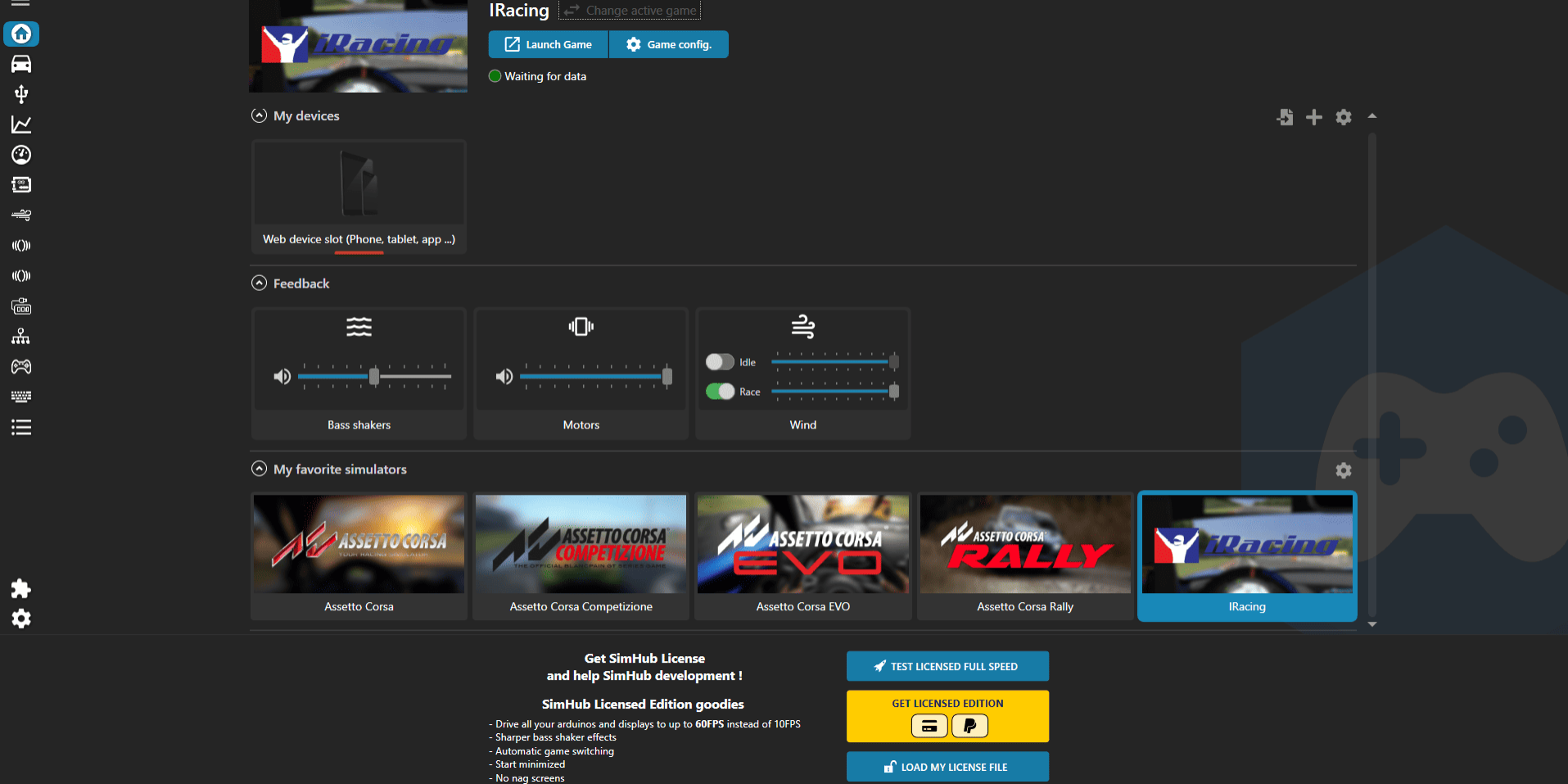
You should see it active on the home screen (and typically “waiting for data” until iRacing is running).
4C) Select the P1000 haptics output device
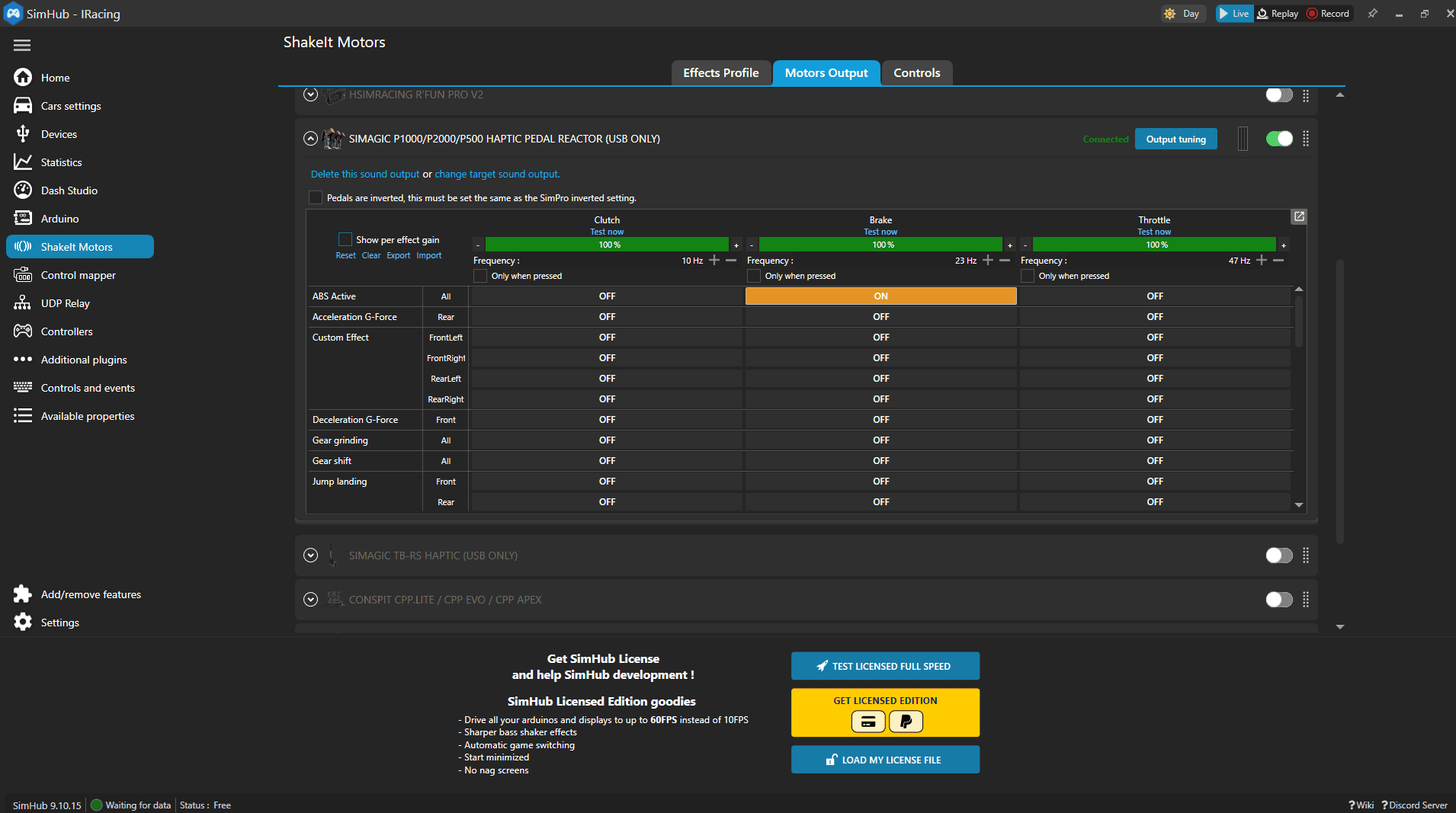
Go to ShakeIt Motors → Motors Output and find:
SIMAGIC P1000/P2000/P500 HAPTIC PEDAL REACTOR (USB ONLY)
Make sure it’s enabled and showing Connected.
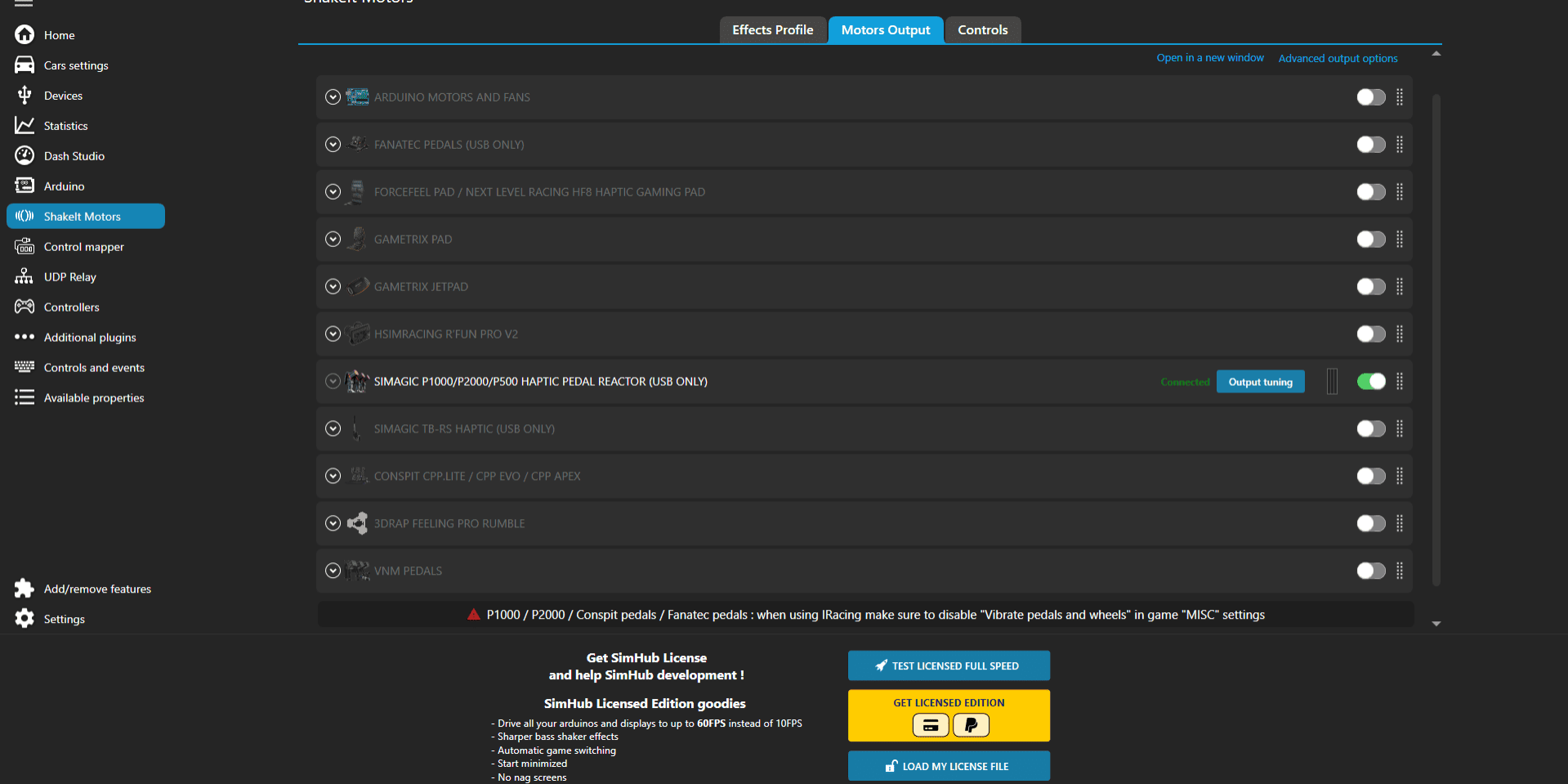
Enable - SIMAGIC P1000/P2000/P500 HAPTIC PEDAL REACTOR (USB ONLY)
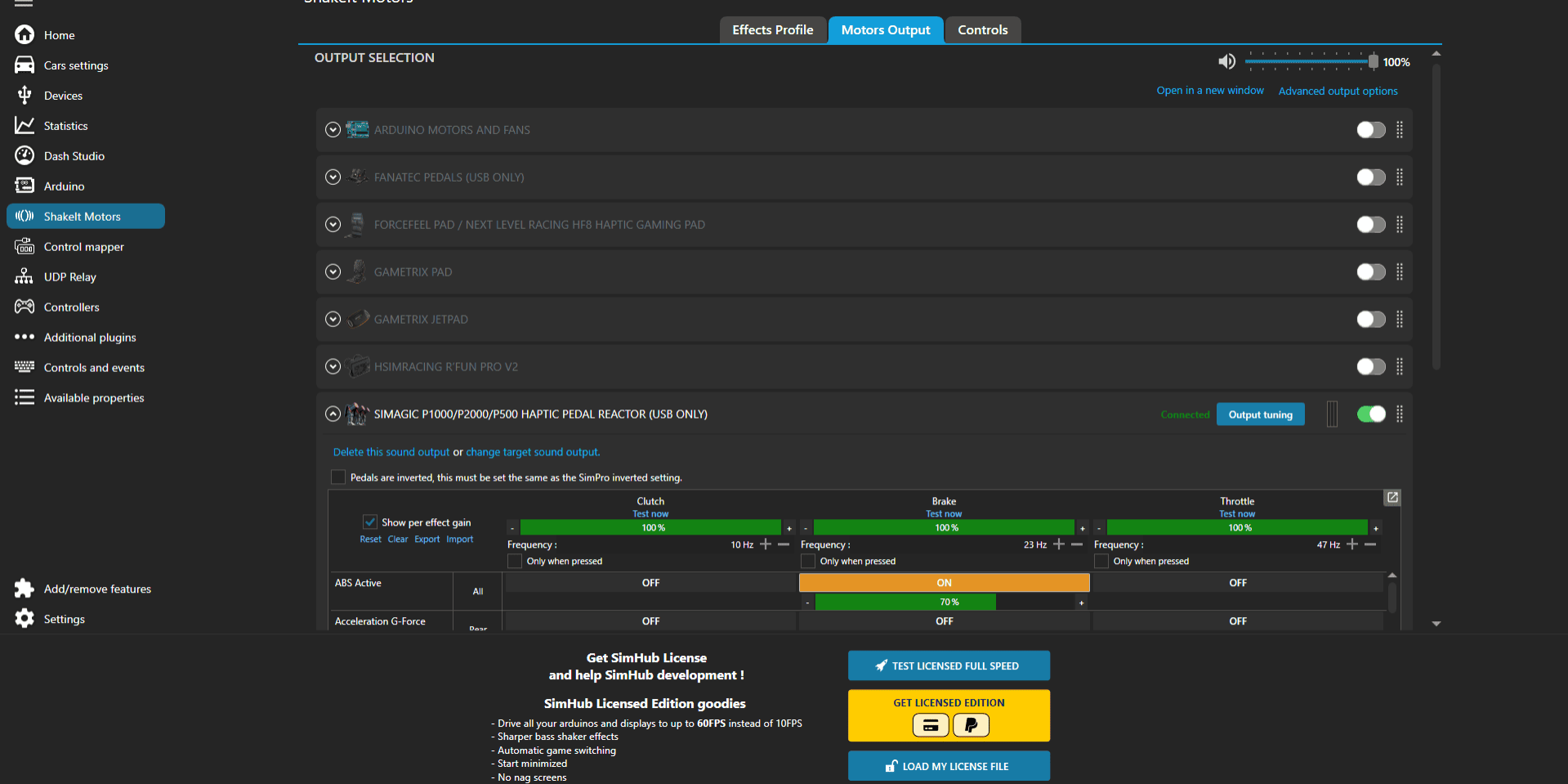
Select the dropdown arrow icon to open the configuration options for the sensors and effects to apply to each pedal.
Step 5 — Mapping effects + tuning strength
5A) The part that confused me!. Mapping haptics with Motor Outputs
This is where I lost time:
I didn’t initially understand that:
You have to select which effects go to which pedal motor
Some effects don’t feel like “racing feedback” unless you pick the right ones
If gain/frequency is too low, it can feel like nothing is happening
My current starter mapping (simple and effective)
This is what I’m using as a baseline in iRacing:
Wheel lock → Brake
ABS active → Brake
Wheel slip → Throttle
Traction loss → Throttle
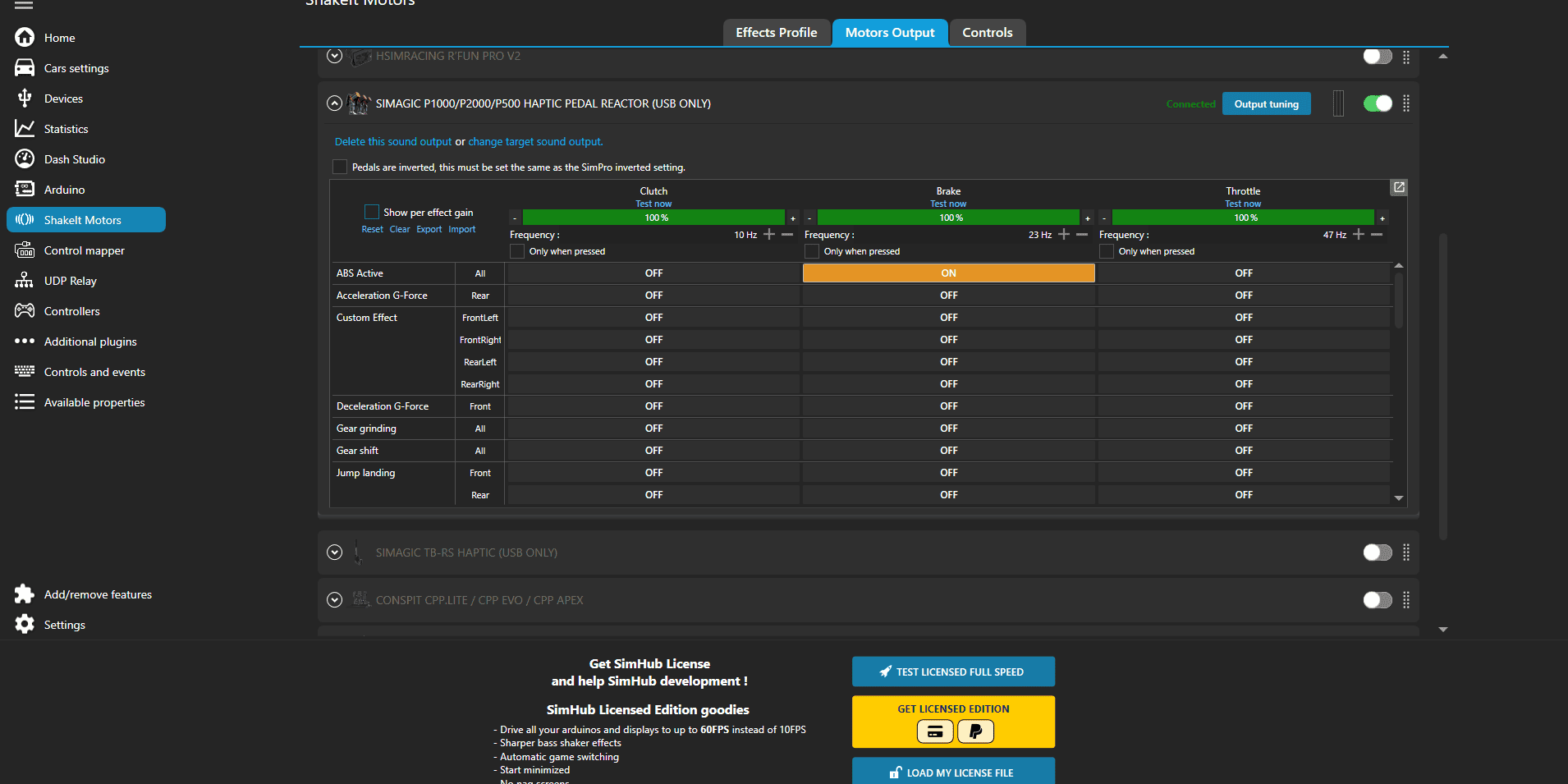
On the brake selection turn ABS to on, then scroll down.
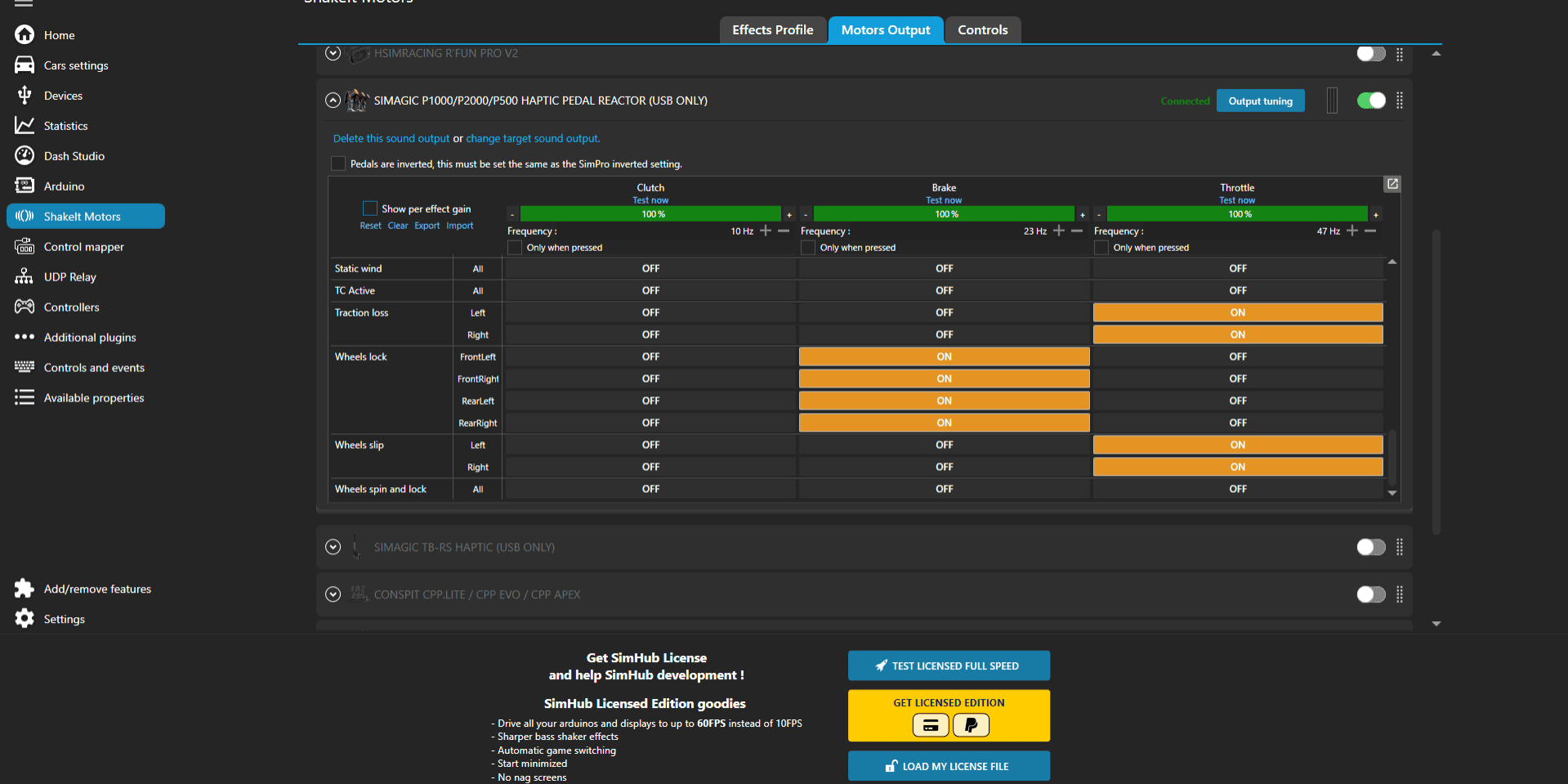
On the brake selection also turn on wheel lock for all 4 wheels.
In the throttle category select 'Traction Loss' (you may need to press add effect at top to find 'traction loss' option).
Also select wheel slip for throttle both left and right.
Wheel lock → Brake
ABS active → Brake
Wheel slip → Throttle
Traction loss → Throttle
Step 6 — My starter effect settings (light tuning)
These are not “perfect feel” yet — they’re just stable and working.
Here are all the effect profile tab options with what I've started with to get a feel for things before fine tuning.
6A) Wheel Lock settings
Settings for wheel lock:
- leave all settings as they are, I have tuned my volume setting on Wheel Lock to 30%.
- Press 'Test' on each wheel to check its configured correctly and the correct pedel vibrates accordingly.
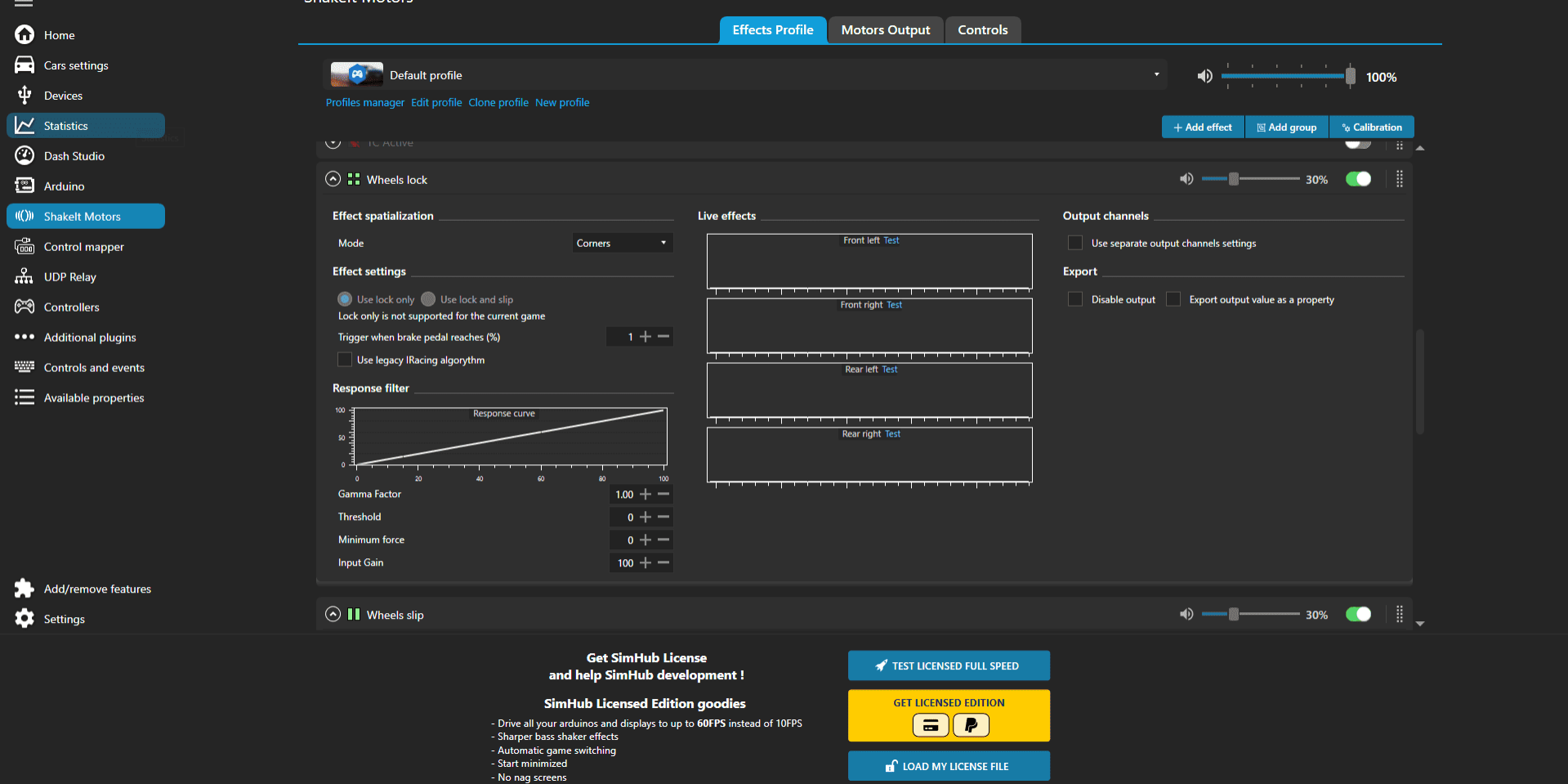
Simhub - wheel lock settings
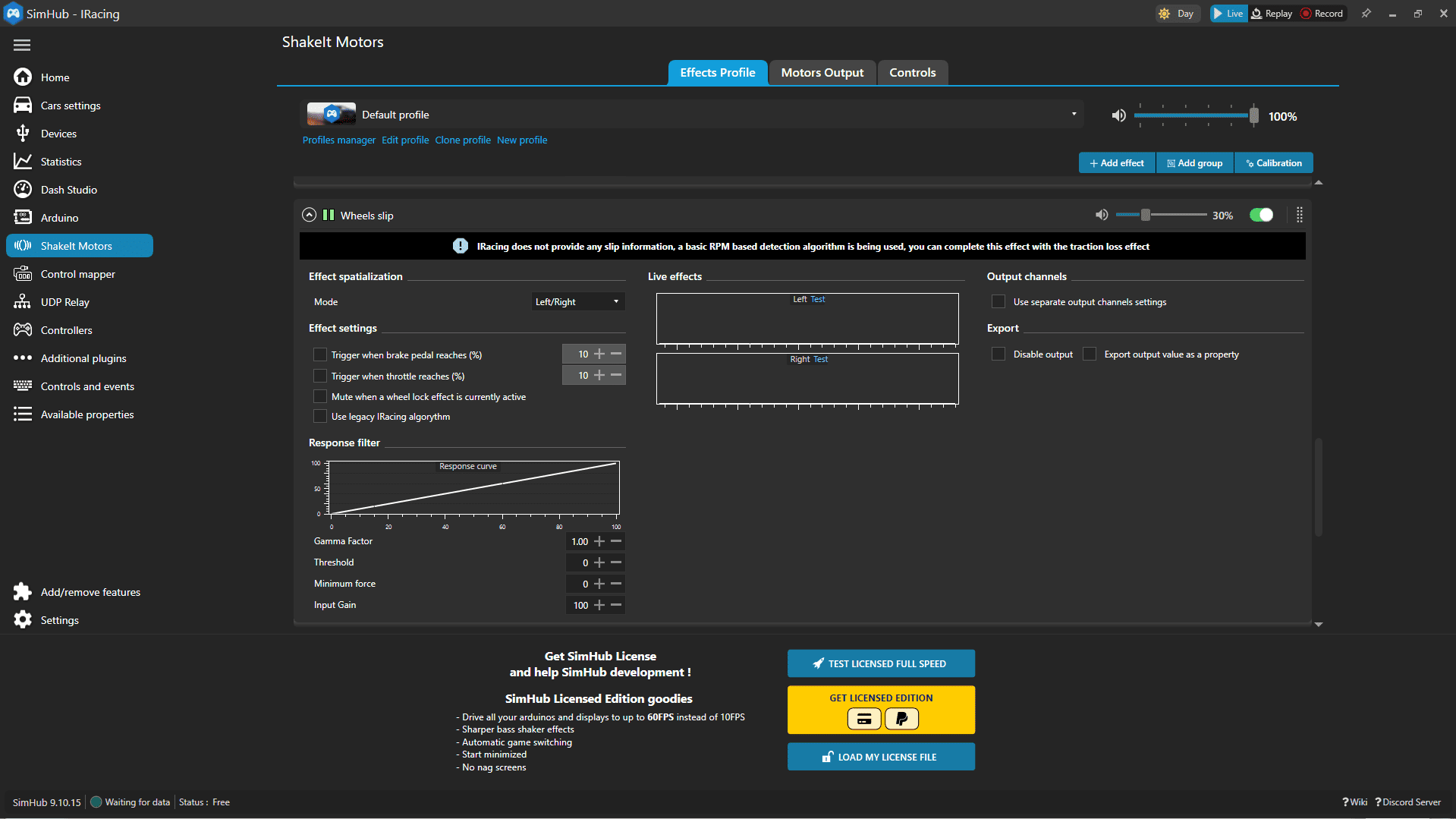
6B) Wheel Slip settings
SimHub even warns that iRacing slip data is limited and may use detection logic — so don’t expect perfection immediately. It still adds useful feedback when tuned.
- leave all settings as they are, I have tuned my volume setting on Wheel Slip to 30%.
- Press 'Test' on each wheel to check its configured correctly and the correct pedel vibrates accordingly.
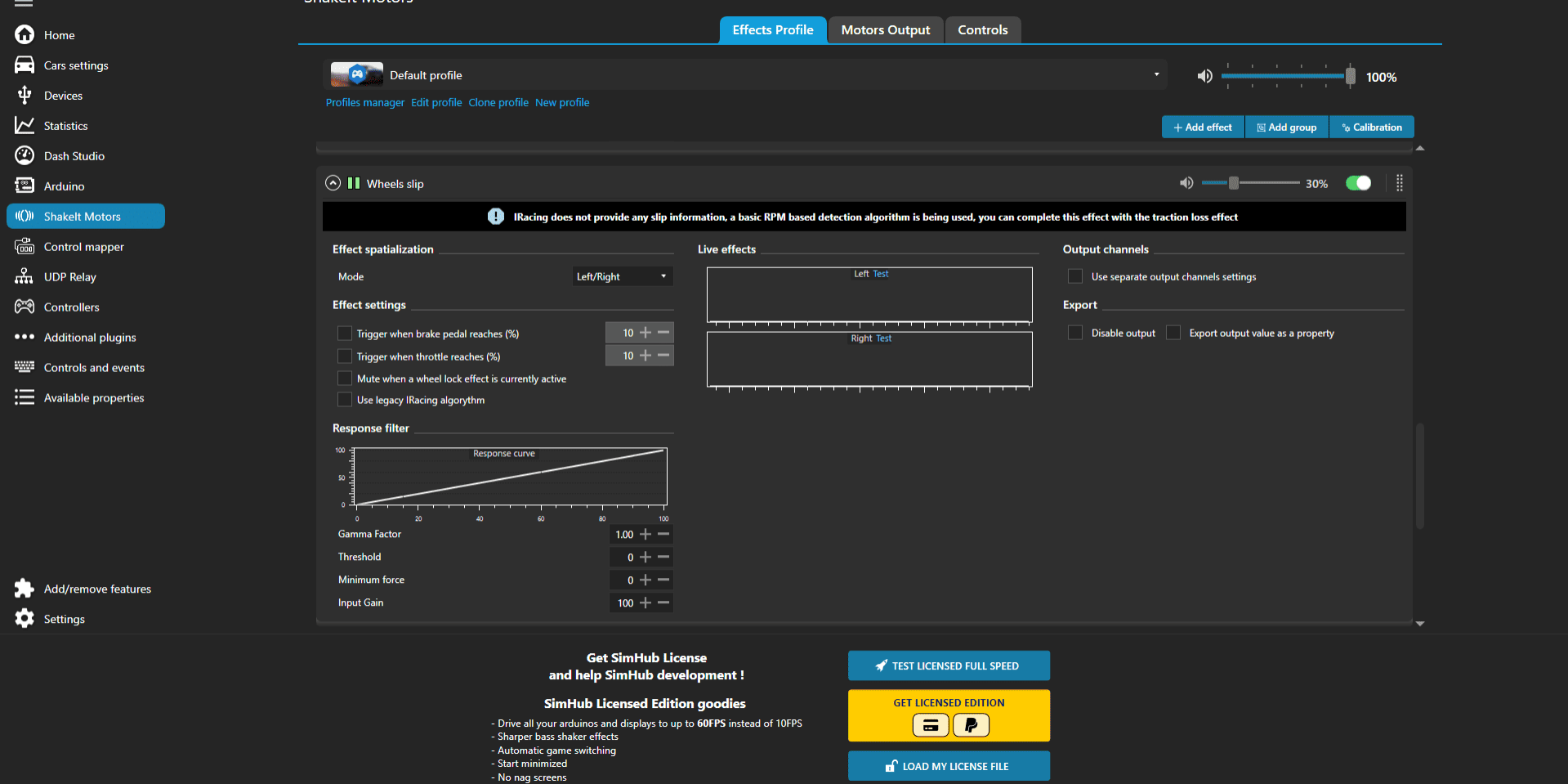
Simhub - wheel lock settings
6C) Traction loss settings
- leave all settings as they are, I have tuned my volume setting on Traction loss to 30%.
- Press 'Test' on each wheel to check its configured correctly and the correct pedel vibrates accordingly.
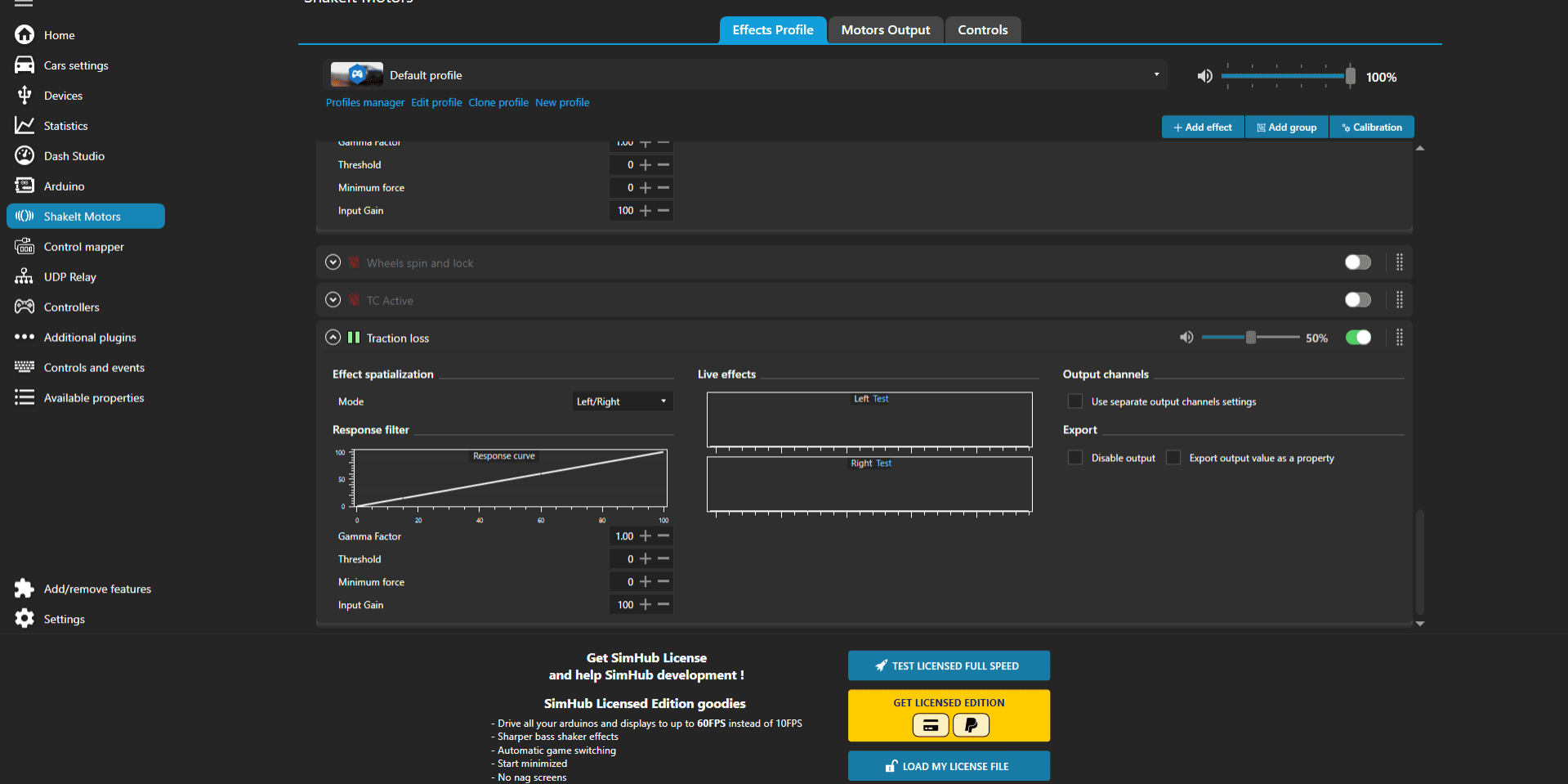
Simhub - Traction loss settings
Troubleshooting (fast checks)
| Symptom | Likely cause | Fix |
|---|---|---|
| Only one pedal vibrates | Another app is controlling output | Close SimPro Manager, disable iRacing vibrate pedals, keep SimHub only |
| No vibration at all | Output device not enabled / gain too low | In SimHub, enable P1000 output + raise gain/frequency |
| Works in test, not in-game | Game output conflict | Re-check iRacing “Vibrate Pedals” OFF and SimPro closed |
| Weak / barely noticeable | Effect frequency/gain too low | Increase gain, adjust frequency, conf |
What I’m still tuning (next update)
Right now the setup is stable, but I’m still fine-tuning:
-
which effects feel most “real” for throttle vs brake
-
the best gain/frequency balance (strong enough to feel, not so strong it’s distracting)
If you’re running a good P1000 haptics profile for iRacing, drop it in the comments — I’ll test and update this post.